Smartphones are powerful. In fact, today’s Android devices are more powerful than laptops from a few years ago. Yet, almost everyone faces the same frustrating issue:
📱 Your Android phone becomes slow over time.
Apps take longer to open. The keyboard lags. Animations stutter. Battery drains faster. Sometimes, even scrolling feels painful.
But why does this happen?
Is it because companies want you to upgrade? Is your phone “getting old”? Or are you unknowingly slowing it down?
In this detailed guide, we’ll break down:
- Why Android phones slow down over time
- The real technical reasons behind performance drops
- 7 proven ways to make your Android fast again
- Advanced hidden settings that boost speed
- When it’s time to upgrade
Let’s fix your phone.
Why Your Android Phone Becomes Slow Over Time
There isn’t just one reason. It’s a combination of software, storage, apps, battery aging, and usage habits.
Let’s break it down.
1️⃣ Storage Gets Filled (And Android Hates That)

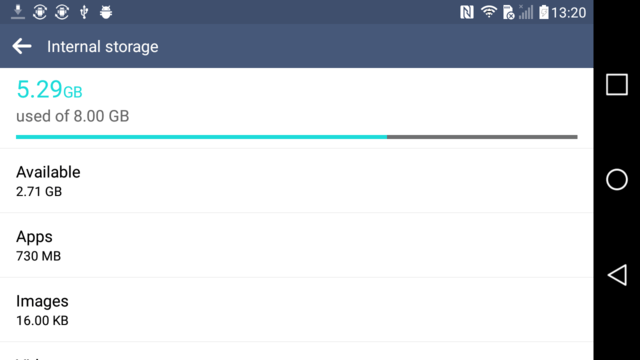


Your Android phone slows down dramatically when storage gets close to full.
Why?
Android needs free space to:
- Create temporary files
- Run app updates
- Store cache data
- Manage background processes
When your storage crosses 80–90% full, performance drops.
What Happens Internally?
Android uses flash storage (eMMC or UFS). When storage fills up:
- Write speeds decrease
- App install times increase
- System indexing slows
- Background tasks get delayed
Think of it like a suitcase. If it’s fully packed, adding or removing items becomes difficult.
2️⃣ Apps Keep Running in Background
Many apps:
- Sync data constantly
- Send push notifications
- Track location
- Refresh content
Even if you’re not using them.
Apps like:
- Google services
They constantly use:
- RAM
- CPU cycles
- Internet
- Battery
Over time, background clutter makes your phone feel heavy.
3️⃣ System Updates Add Heavier Features


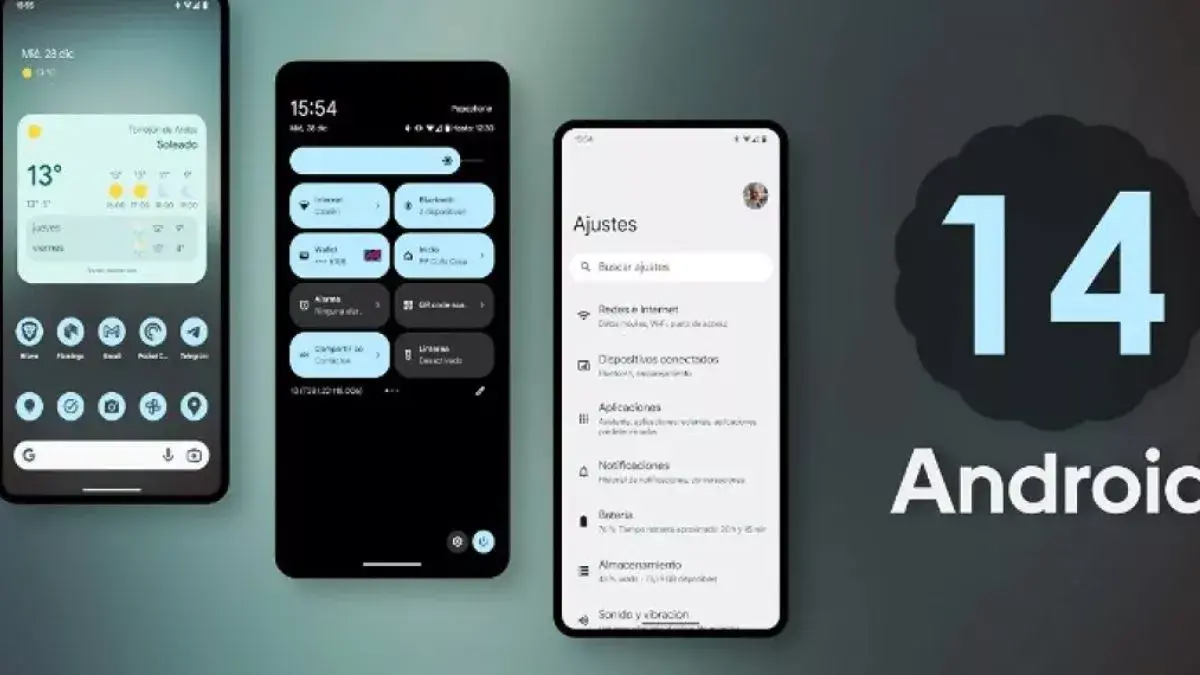
When you update Android, you get:
- New animations
- New UI features
- Enhanced security
- Background services
But here’s the truth:
Updates are optimized for newer hardware.
If your device is 3–4 years old, the new Android version might be heavier than your processor can handle comfortably.
4️⃣ Cache Files Build Up
Apps store cache to load faster next time.
Example:
- YouTube stores video thumbnails
- Chrome stores website data
- Spotify stores album artwork
But over months, cache becomes:
- Corrupted
- Oversized
- Fragmented
Instead of helping, it starts slowing the device.
5️⃣ Battery Health Degrades
Most Android phones use lithium-ion batteries.
After 2–3 years:
- Battery capacity drops
- Voltage delivery weakens
- Thermal efficiency reduces
To prevent shutdowns, Android may throttle performance.
This is why older phones feel slow even after reset.
6️⃣ Too Many Apps Installed
Even if unused, apps:
- Register background services
- Install auto-start permissions
- Add widgets
- Sync occasionally
A phone with 200 apps will always be slower than one with 50 well-managed apps.
7️⃣ Hardware Naturally Ages
Over time:
- Flash memory degrades
- Thermal paste dries out
- CPU throttles more
- RAM efficiency drops
Electronics age — just like cars.
7 Proven Ways to Fix a Slow Android Phone
Now the good part.
These methods are tested and actually work.
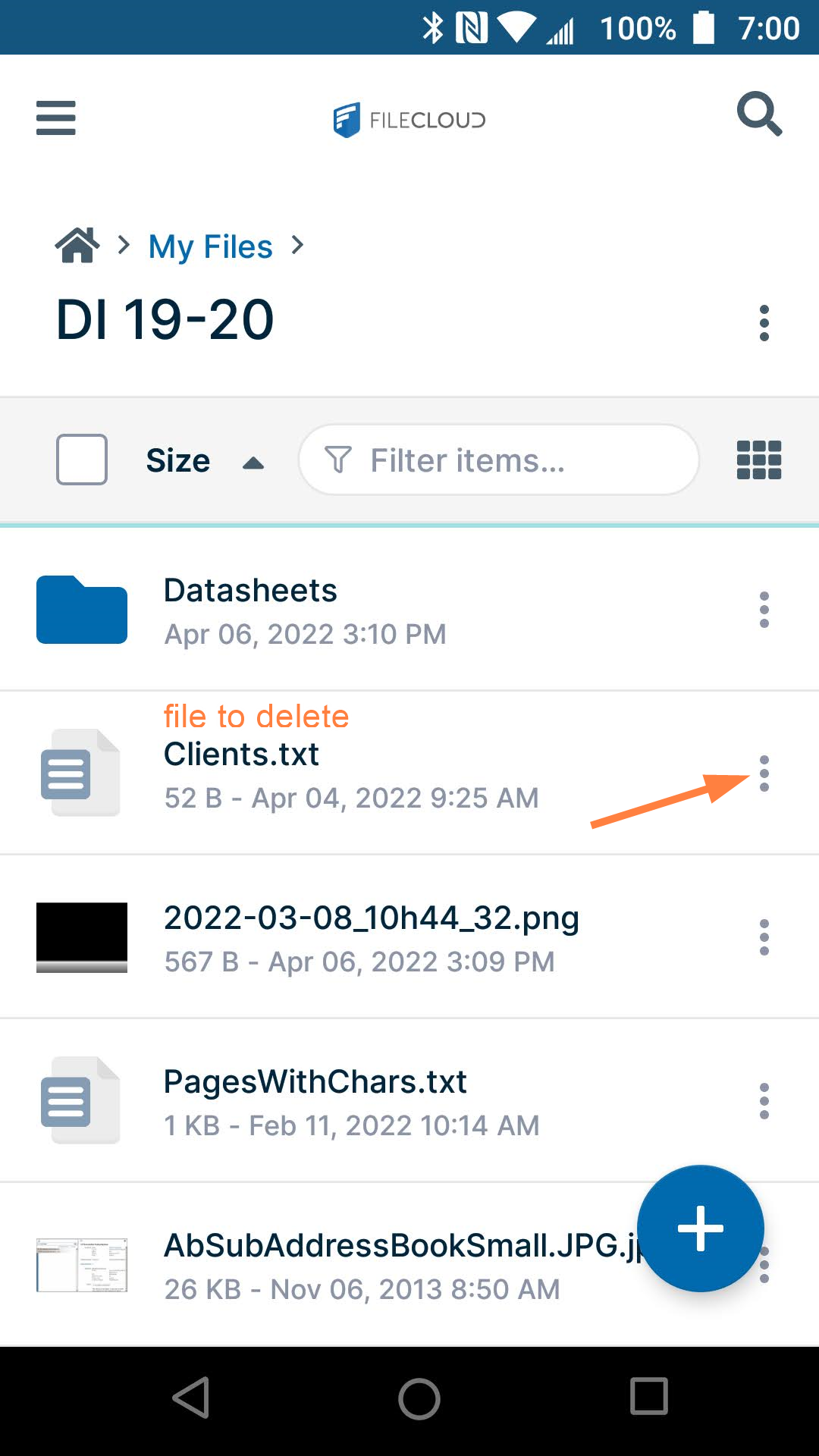
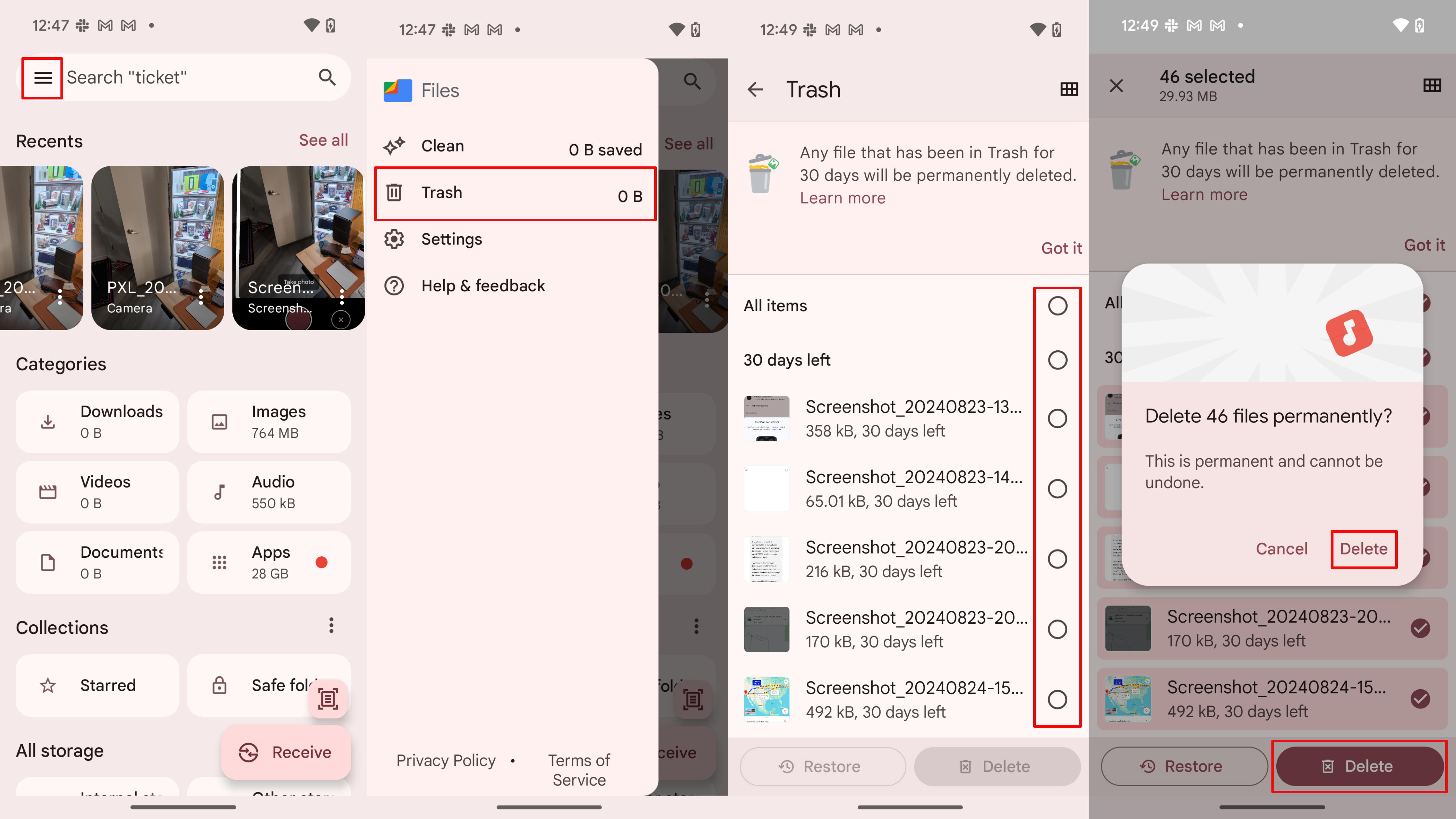
1. Free Up Storage (Biggest Speed Booster)


Target:
Keep at least 25–30% storage free
What to Delete:
- Old videos
- WhatsApp forwarded media
- Download folder junk
- Duplicate photos
- Large unused apps
Use:
- Built-in Storage Manager
- Files by Google
You’ll immediately feel smoother performance.
2. Reduce Animations (Hidden Speed Trick)
This alone can make your phone feel 2x faster.
Steps:
- Go to Settings
- About Phone
- Tap Build Number 7 times
- Open Developer Options
- Set:
- Window animation scale → 0.5x
- Transition animation scale → 0.5x
- Animator duration scale → 0.5x
Boom. Instant speed perception boost.
3. Uninstall or Disable Bloatware
Many brands preload apps you never use.
Examples:
- Browser duplicates
- App stores
- Trial games
- Theme stores
Disable them from:
Settings → Apps → Disable
Less background load = more RAM available.
4. Clear Cache (But Do It Smartly)
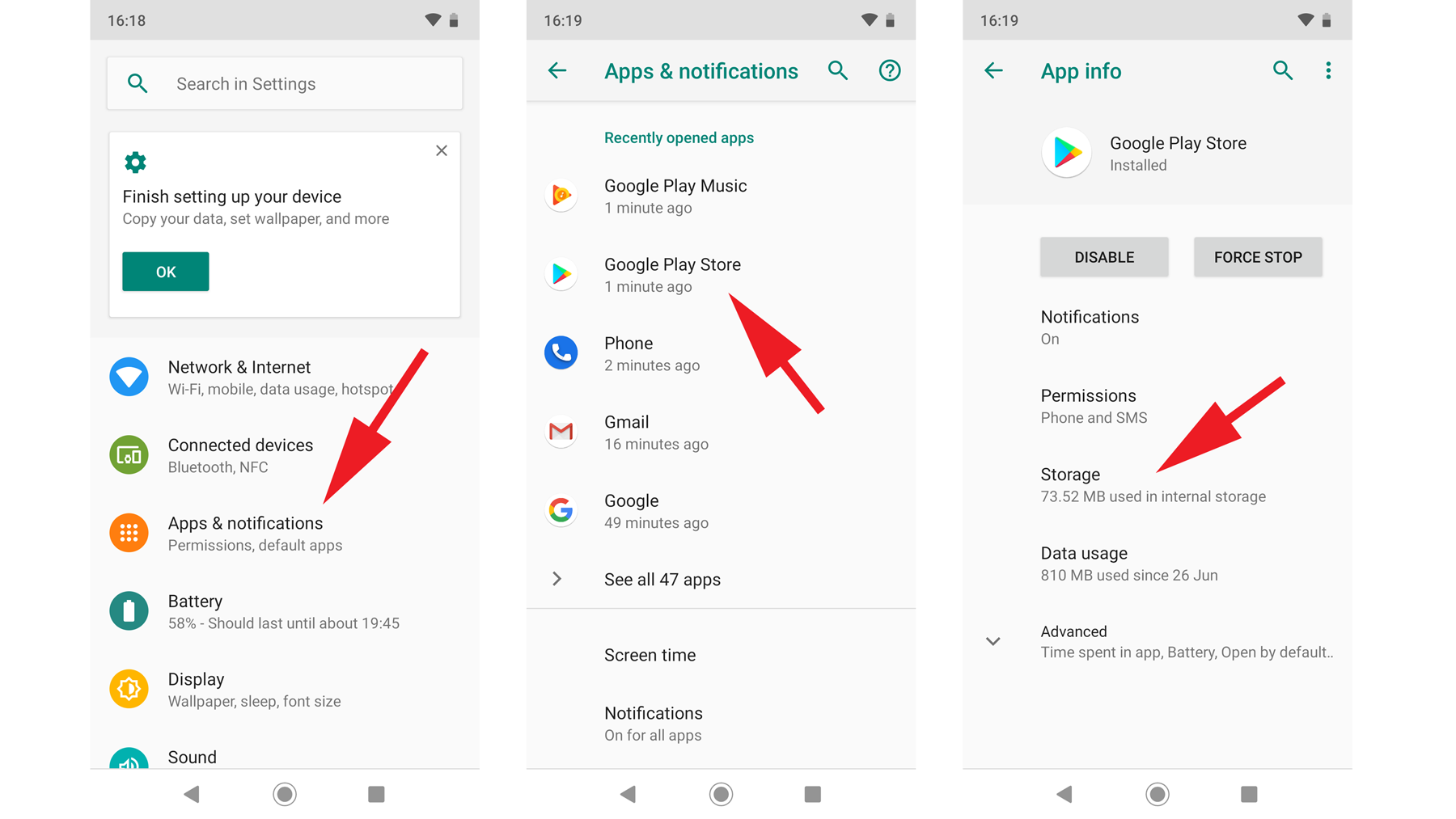

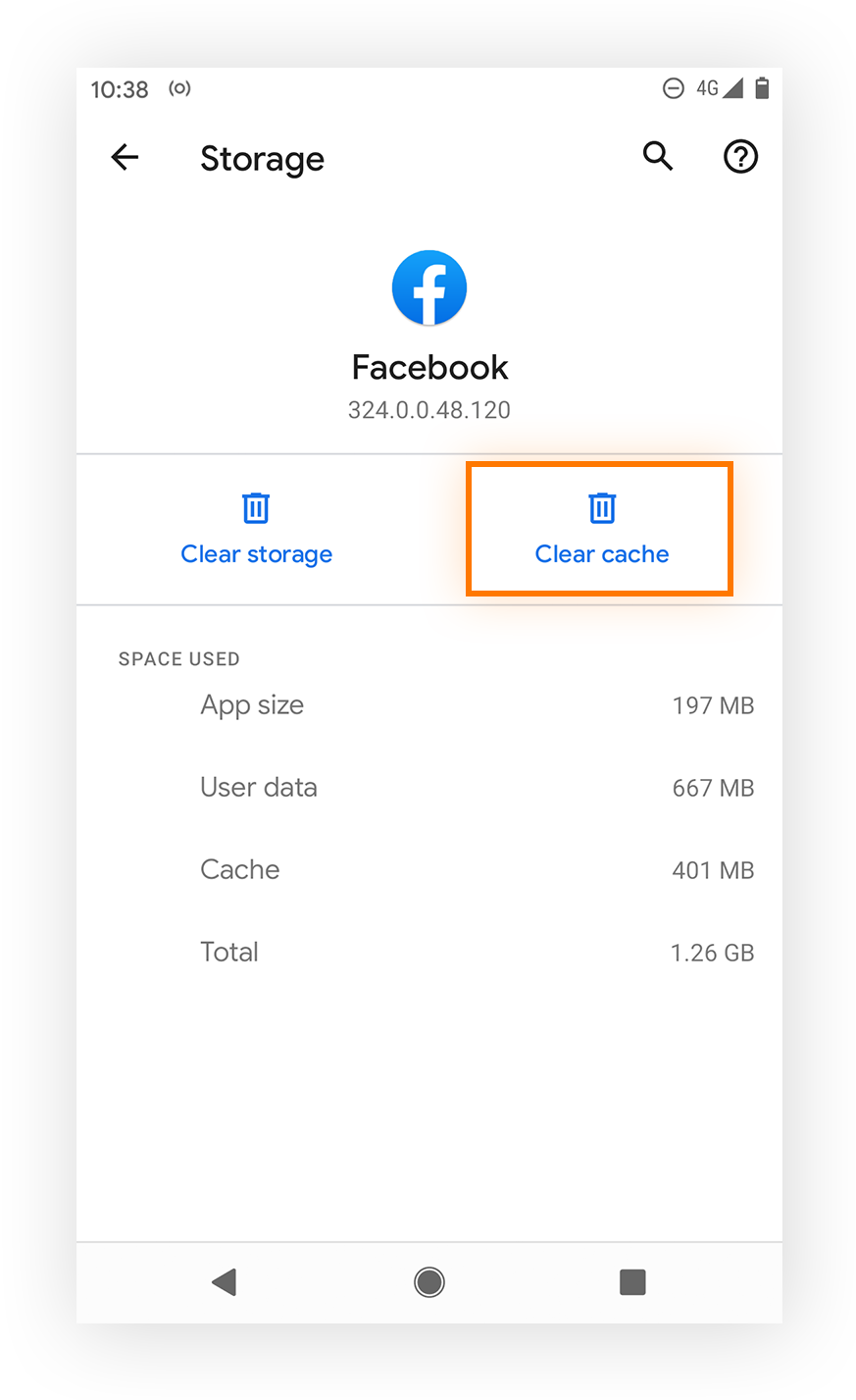
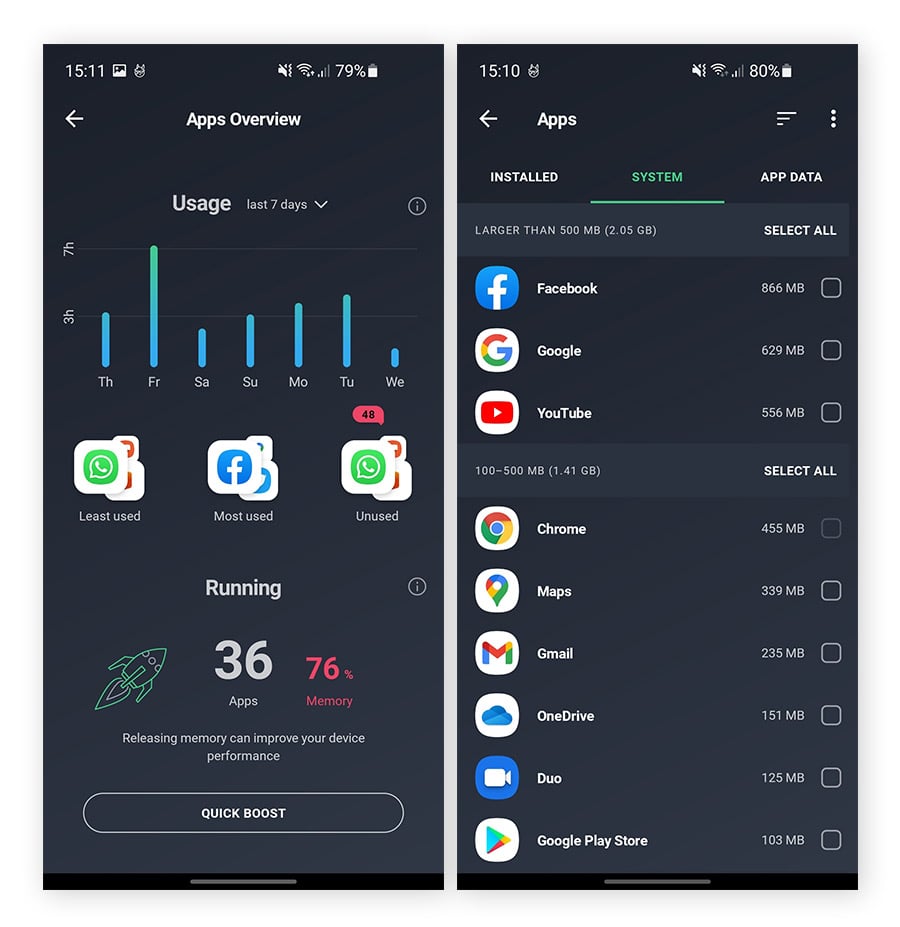
Instead of clearing everything daily:
Clear cache for:
- Chrome
- YouTube
Don’t clear system apps randomly.
5. Turn Off Auto-Sync for Unnecessary Apps
Settings → Accounts → Sync
Disable sync for:
- Rarely used email
- Unused cloud apps
- Backup apps you don’t need
Less syncing = smoother multitasking.
6. Use Lite Apps Instead of Heavy Apps
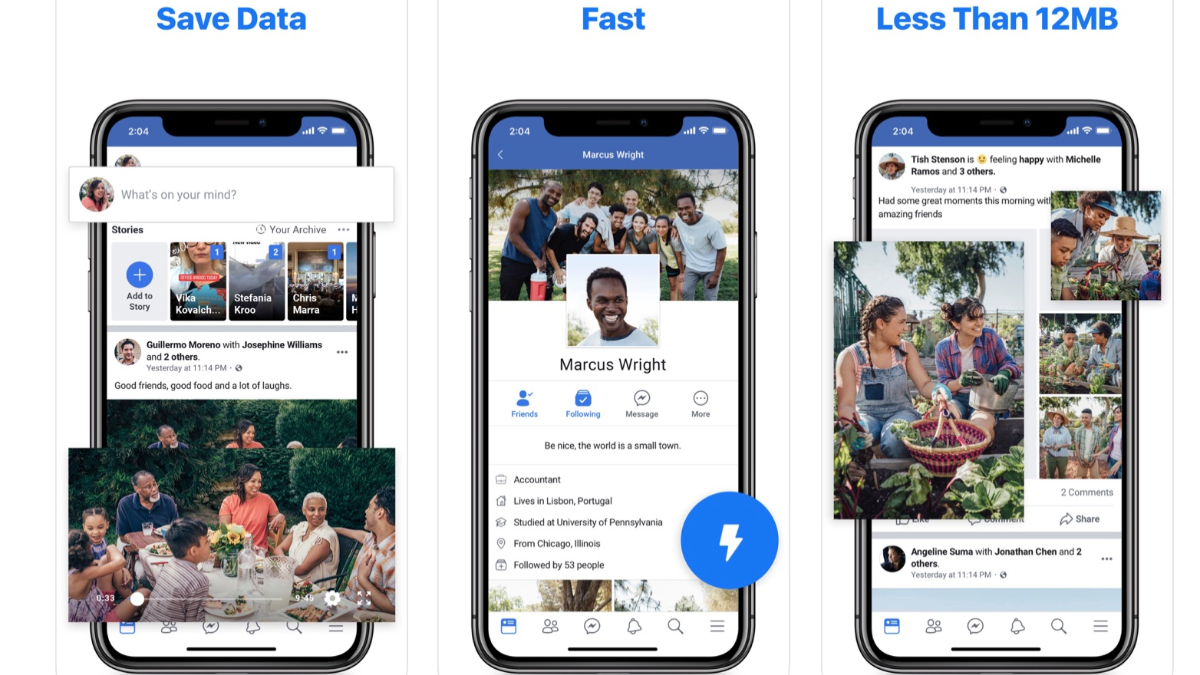
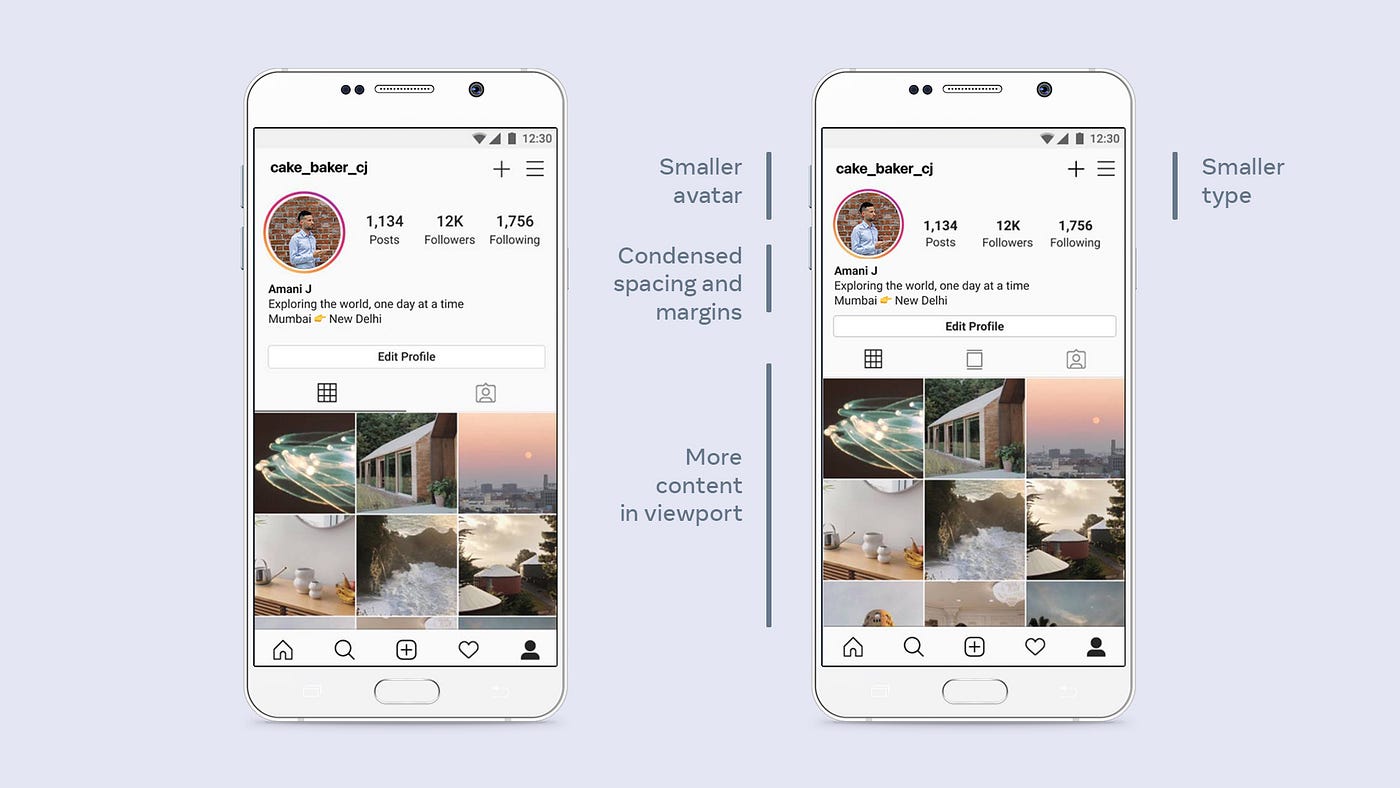


Lite apps use:
- Less RAM
- Less storage
- Less background processing
Examples:
- Facebook Lite
- Instagram Lite
- YouTube Go
Great for older phones.
7. Factory Reset (Ultimate Reset Button)
If nothing works:
Back up your data
Settings → Reset → Factory Data Reset
A reset:
- Removes junk files
- Removes malware
- Clears corrupt cache
- Restores performance
Many 3-year-old phones feel new again after reset.
Advanced Speed Boost Tricks (Optional)
1. Use a Lightweight Launcher
Try minimal launchers for faster home screen.
2. Turn Off Live Wallpapers
They constantly use GPU resources.
3. Restart Weekly
A simple reboot clears temporary RAM clutter.
4. Avoid RAM Cleaner Apps
They actually make performance worse.
Does Android Slow Phones Intentionally?
No solid proof suggests Android slows devices intentionally.
However:
- New features demand more resources
- Apps become heavier yearly
- AI features consume extra power
That creates the perception of slowdown.
When Should You Upgrade?
Upgrade if:
- Phone is 4–5 years old
- Battery health is poor
- No more security updates
- Storage is 64GB or less
Final Checklist to Make Your Android Fast
✔ Keep 30% storage free
✔ Reduce animations
✔ Disable bloatware
✔ Clear heavy app cache
✔ Stop unnecessary sync
✔ Use lite apps
✔ Factory reset if needed
Conclusion
Your Android phone doesn’t slow down because it’s “old.”
It slows down because:
- Storage fills up
- Apps get heavier
- Background processes multiply
- Updates demand more resources
- Battery ages
The good news?
You don’t need a new phone immediately.
Follow the 7 proven fixes above, and your Android can feel fast again — even after years of use.