If you’re using Google Chrome daily for browsing, work, banking, blogging, or streaming — you might be leaving performance and privacy on the table.
Most users never touch Chrome’s advanced settings. They install it, sign in, and start browsing. But hidden inside Chrome are powerful tweaks that can:
- Make your browser significantly faster
- Improve your online privacy
- Reduce tracking and data collection
- Lower RAM and CPU usage
- Improve battery life (especially on laptops)
In this detailed 2026 guide, you’ll discover 10 hidden Google Chrome settings you must change right now to enjoy better speed and stronger privacy — whether you’re using Windows, Mac, or Android.
Let’s dive in.
1️⃣ Turn Off “Continue Running Background Apps” (Massive RAM Saver)
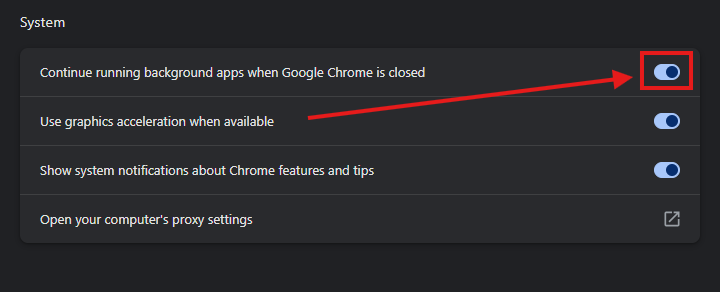
Why This Setting Matters
By default, Chrome keeps running in the background even after you close the browser. That means:
- Extensions keep consuming RAM
- Background processes stay active
- Your PC may slow down over time
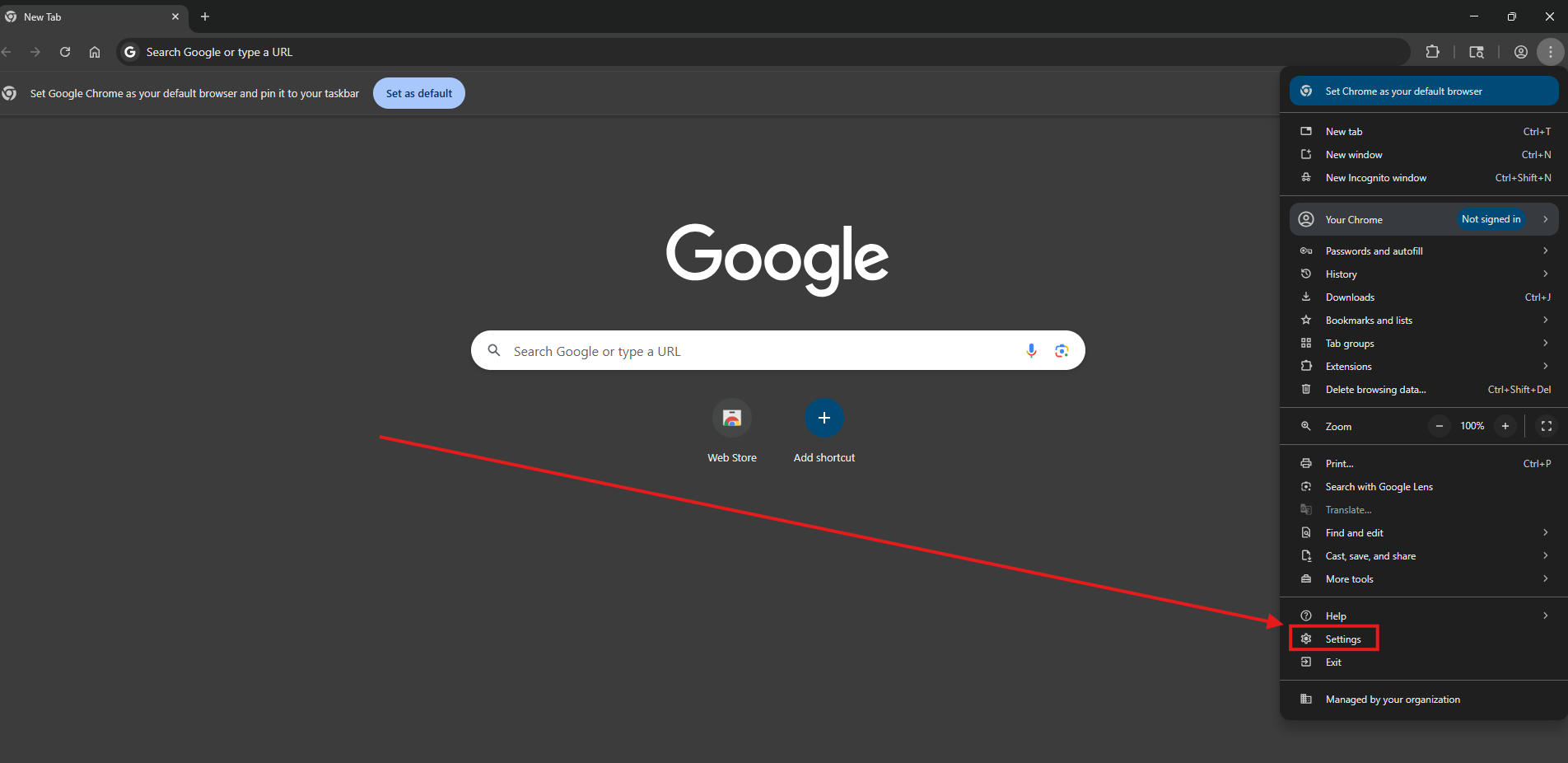
How to Disable It
- Open Chrome
- Go to Settings
- Click System
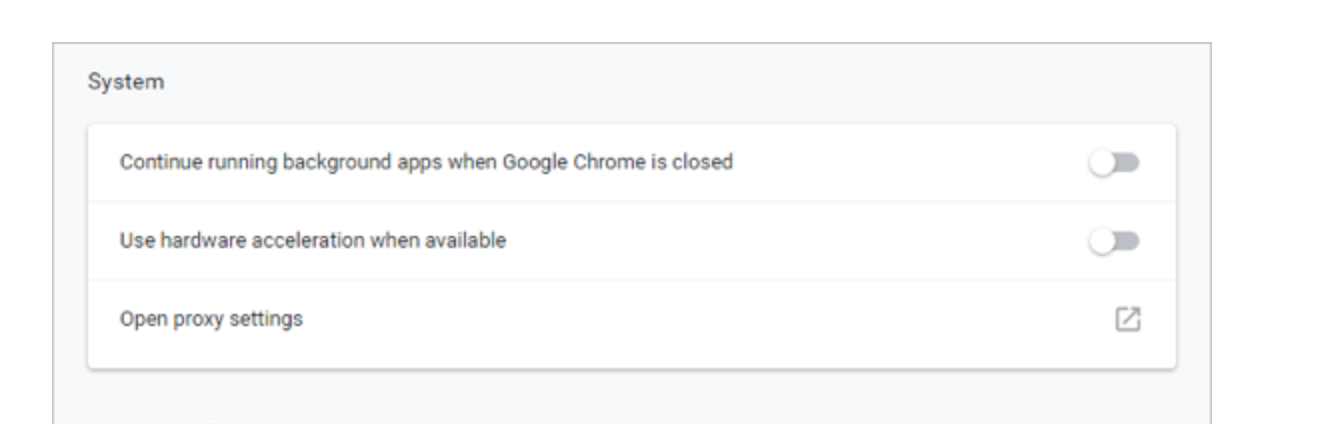
- Turn OFF: “Continue running background apps when Google Chrome is closed”
Speed Impact
✔ Frees up memory
✔ Reduces CPU usage
✔ Improves system responsiveness
If your laptop feels slow even when Chrome is closed, this setting is likely the reason.
2️⃣ Enable “Memory Saver” for Faster Browsing

What Is Memory Saver?
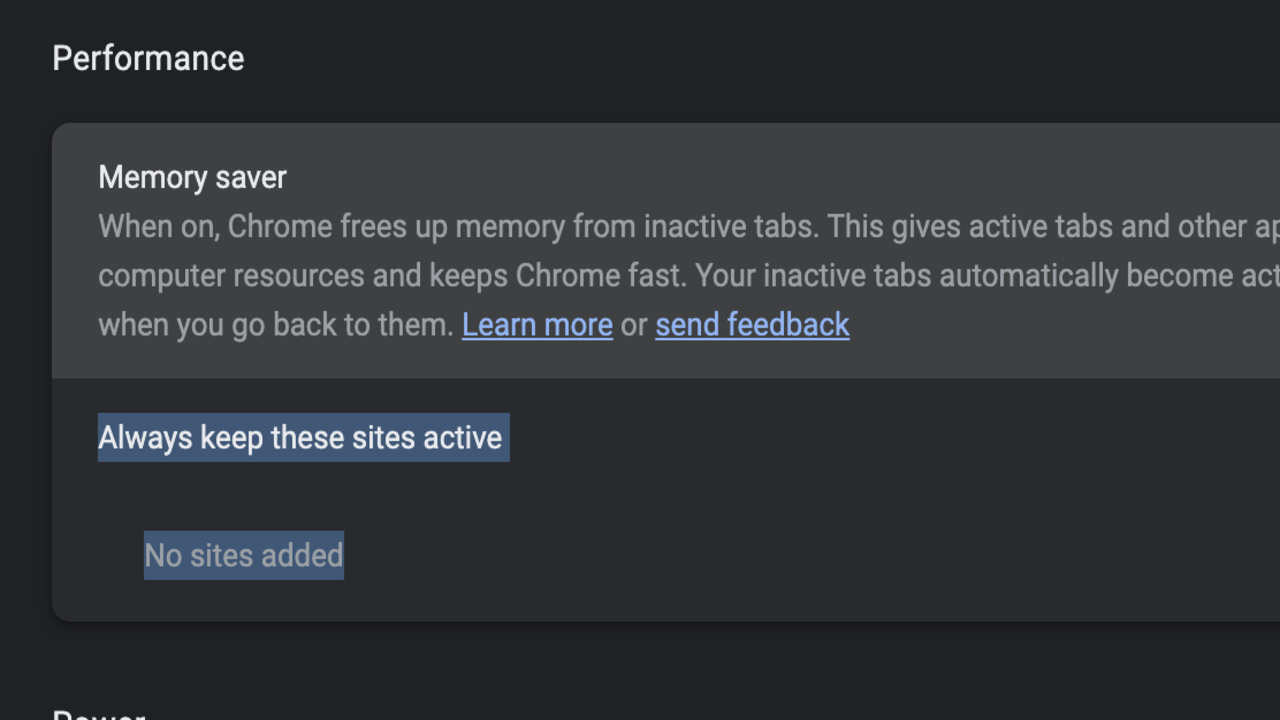
Chrome’s Memory Saver automatically frees up RAM from inactive tabs.
Inactive tabs go to sleep — and reload only when clicked.
How to Enable
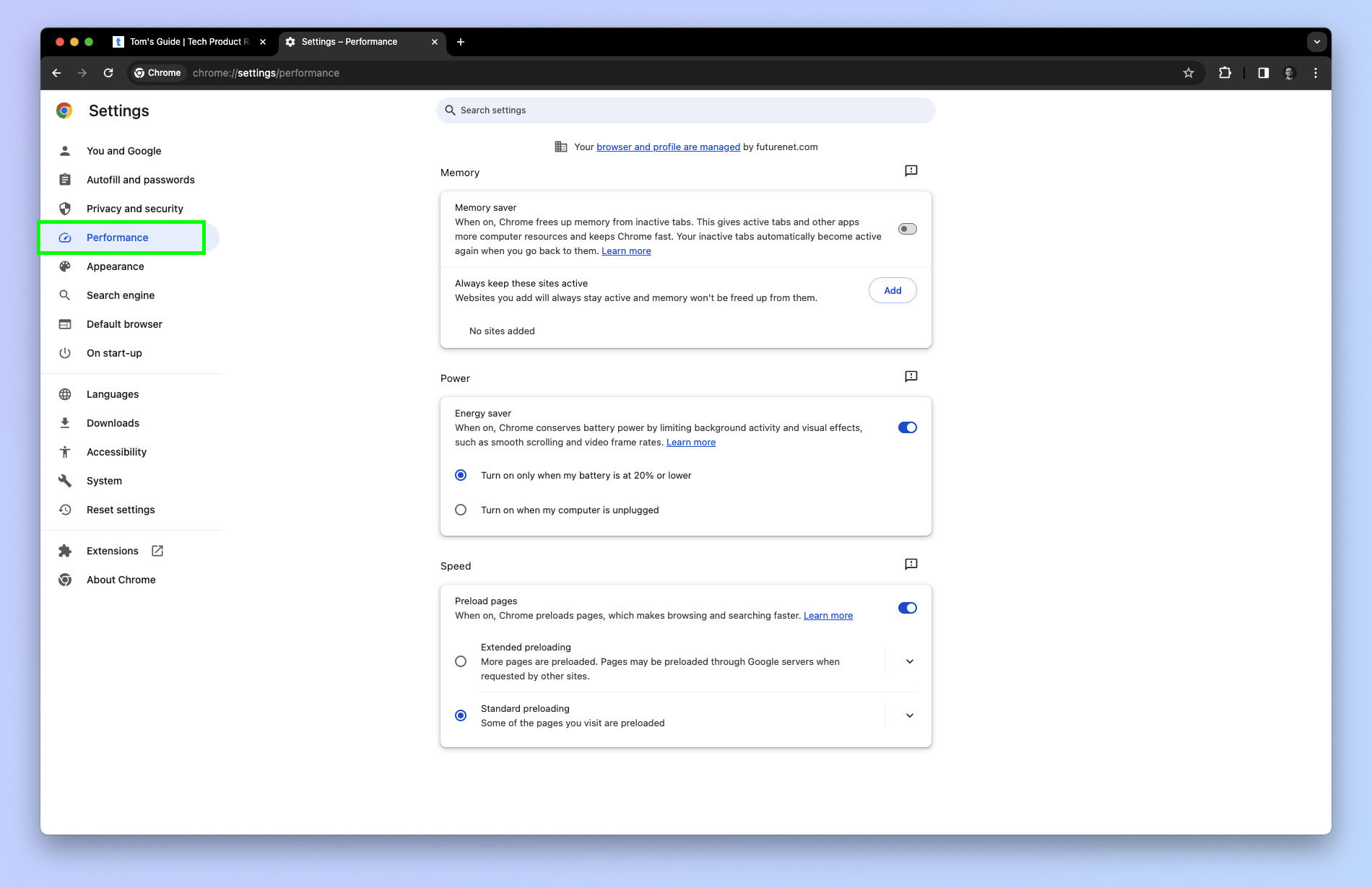
- Go to Settings
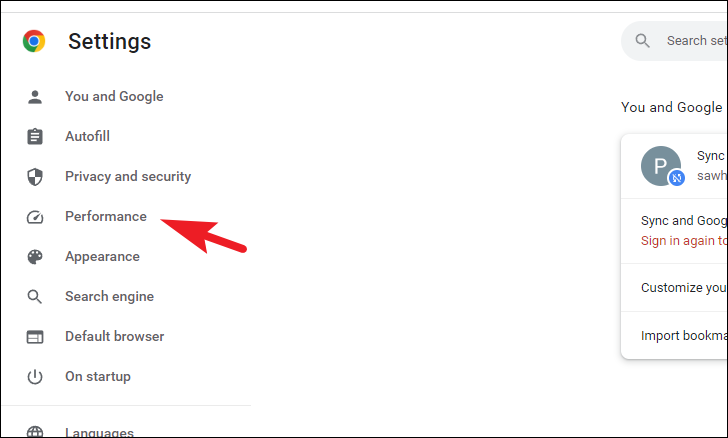
- Click Performance
- Turn ON Memory Saver
Why You Must Enable It
- Reduces RAM usage by up to 40%
- Speeds up active tabs
- Perfect for users with 4GB–8GB RAM systems
- Ideal for bloggers and multitaskers
If you keep 15–20 tabs open (like most professionals), this is a game changer.
3️⃣ Turn Off “Preload Pages” to Reduce Tracking

What Preloading Does
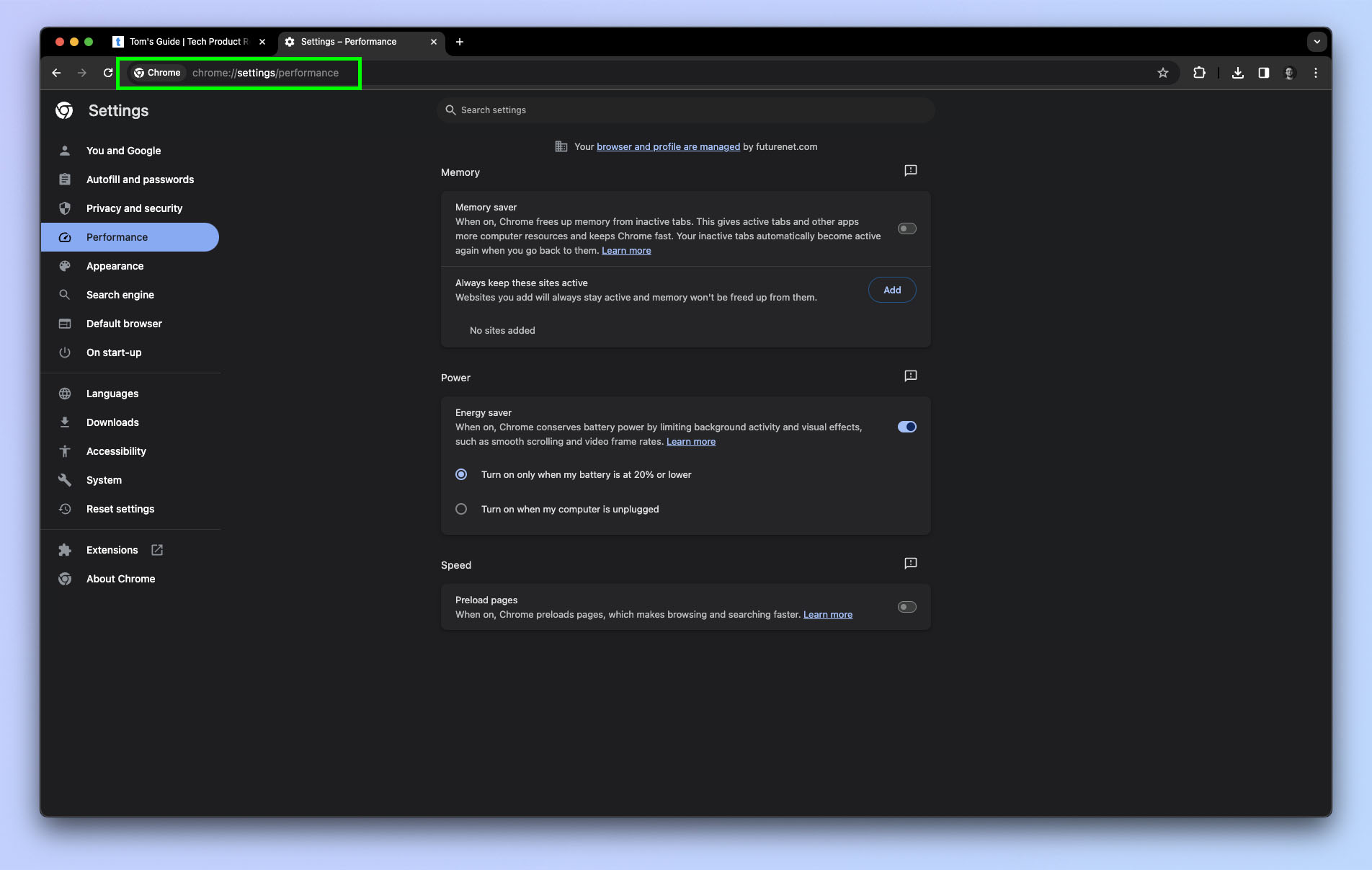
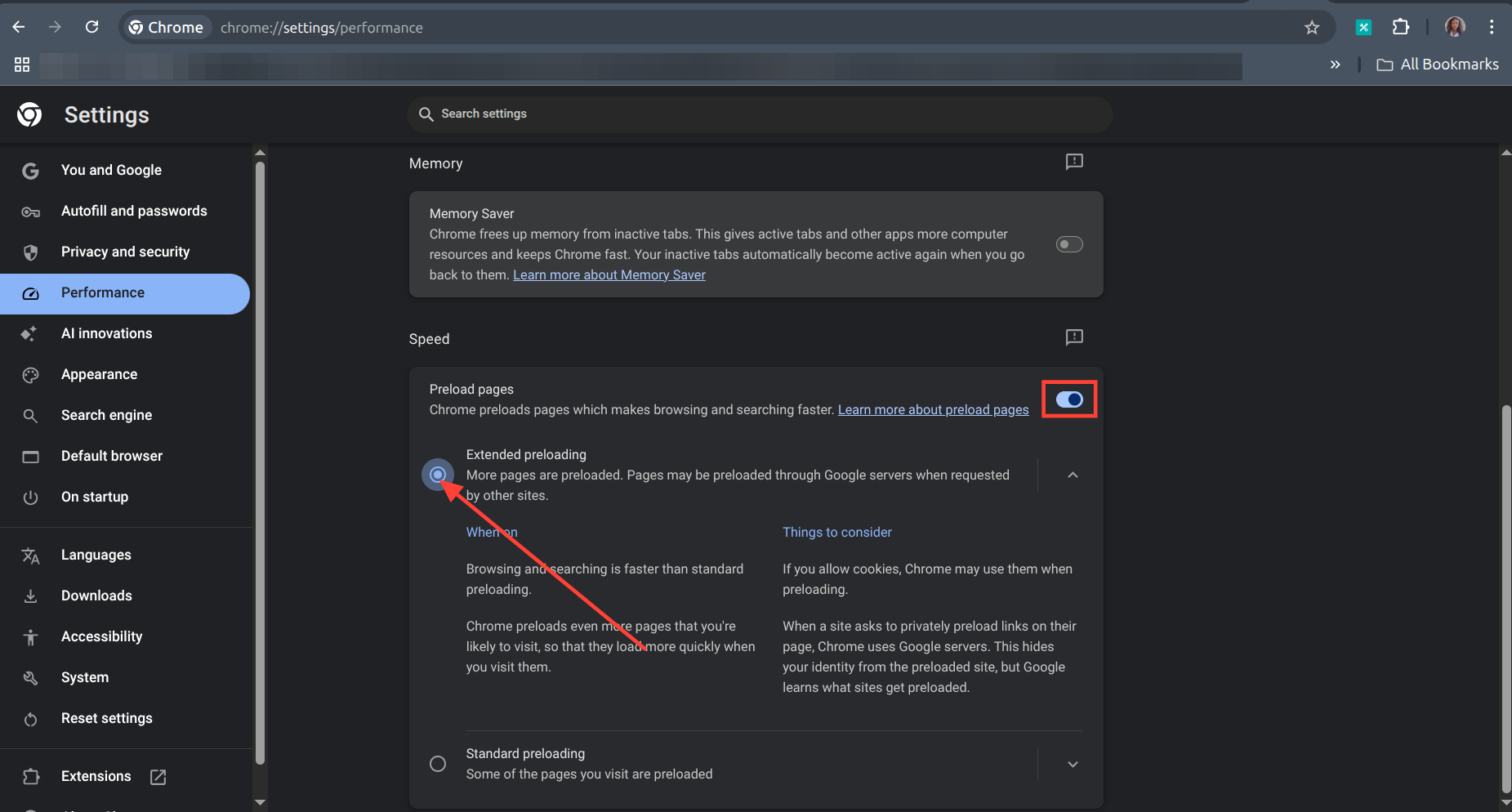
Chrome preloads pages it predicts you’ll visit next. Sounds helpful — but:
- It uses extra data
- It consumes bandwidth
- It allows predictive tracking
- It may expose browsing behavior
How to Disable
- Go to Settings
- Click Performance
- Turn OFF Preload pages
Privacy Benefit
✔ Reduces predictive tracking
✔ Saves mobile data
✔ Improves privacy footprint
If privacy matters to you — disable this immediately.
4️⃣ Change “Cookies” to Block Third-Party Tracking
Why This Is Important
Third-party cookies allow advertisers and trackers to follow you across websites.
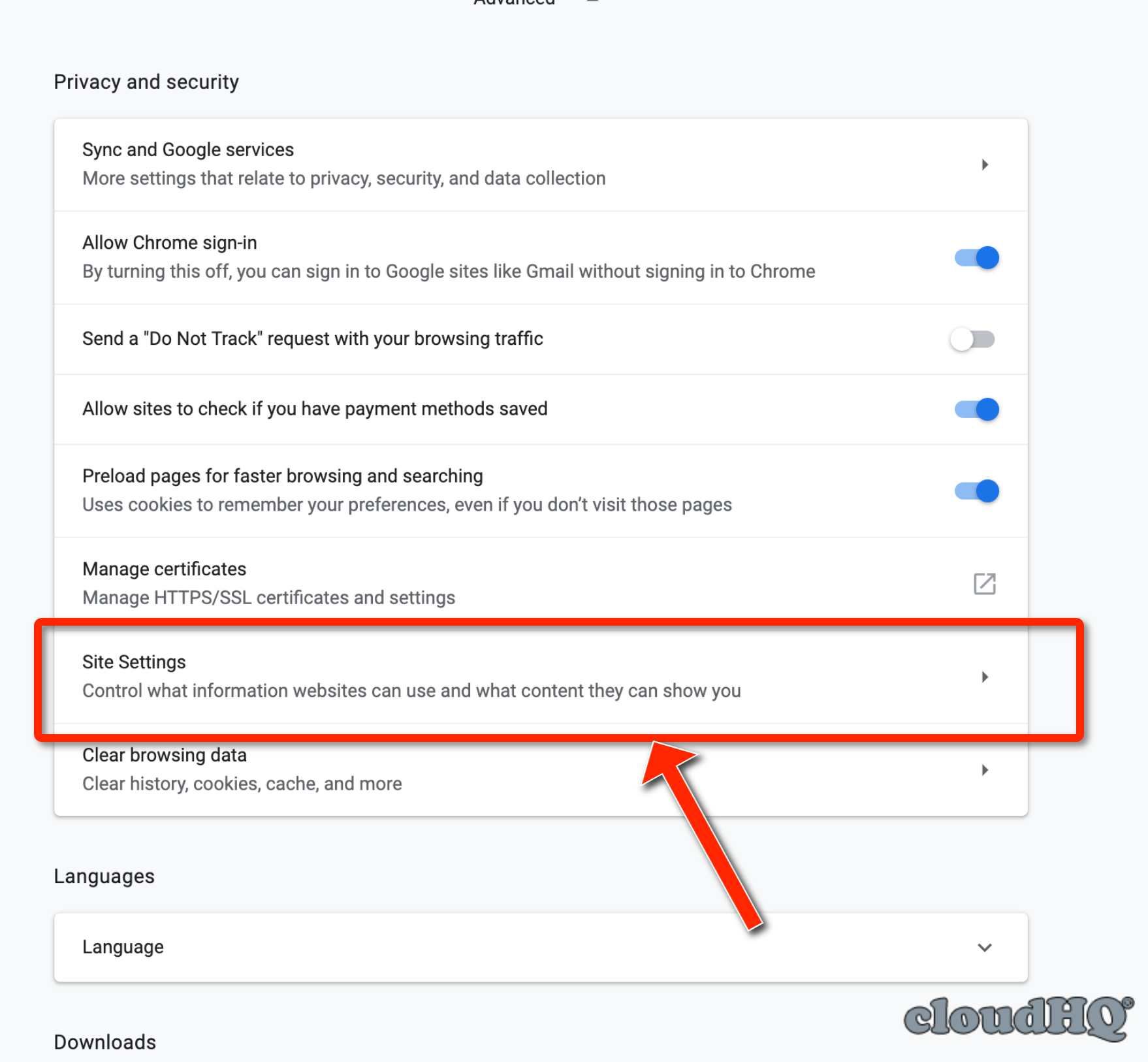
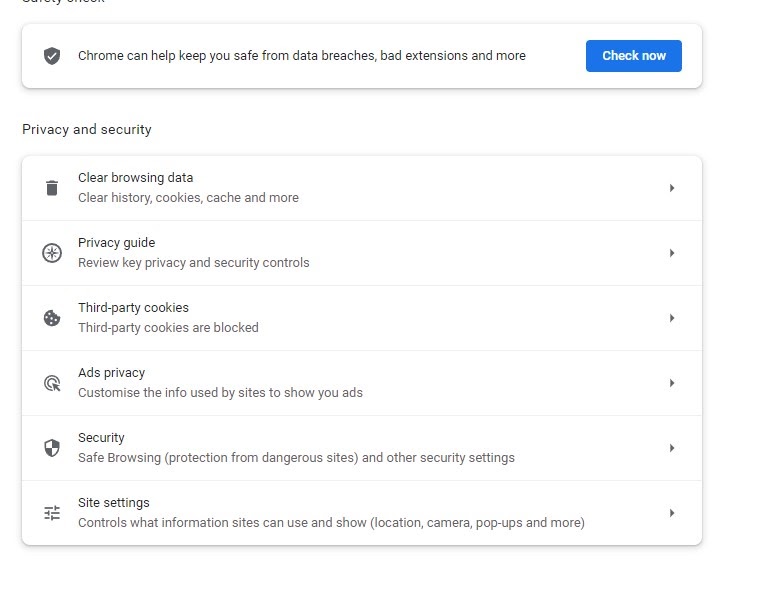
How to Change It
- Go to Settings
- Click Privacy and security
- Select Cookies and other site data
- Enable: “Block third-party cookies”
What Happens After?
- Ads become less personalized
- Cross-site tracking reduces
- Online privacy improves
This is one of the most powerful privacy settings in Chrome.
5️⃣ Disable “Ad Privacy” (New Tracking Control)

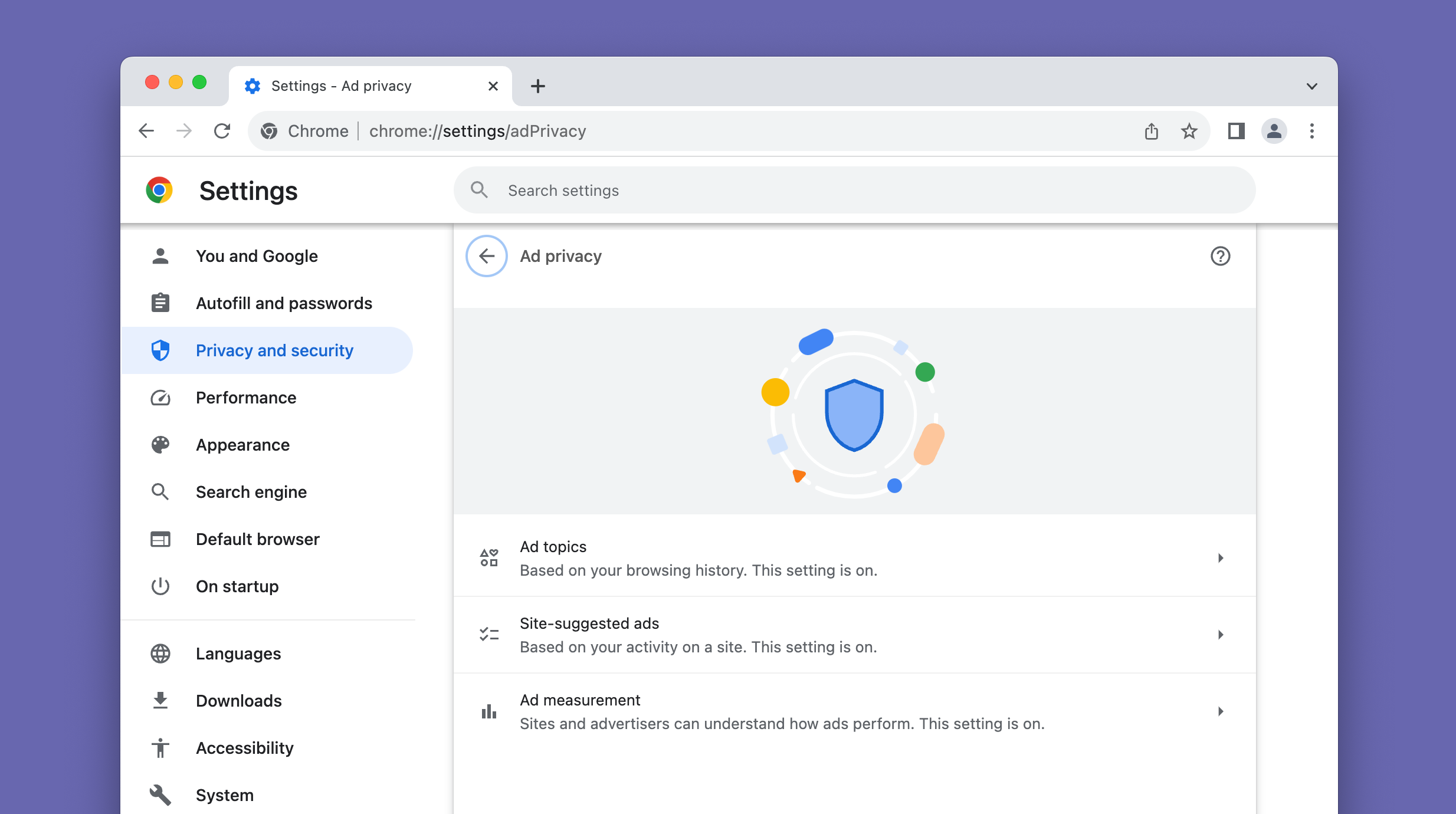
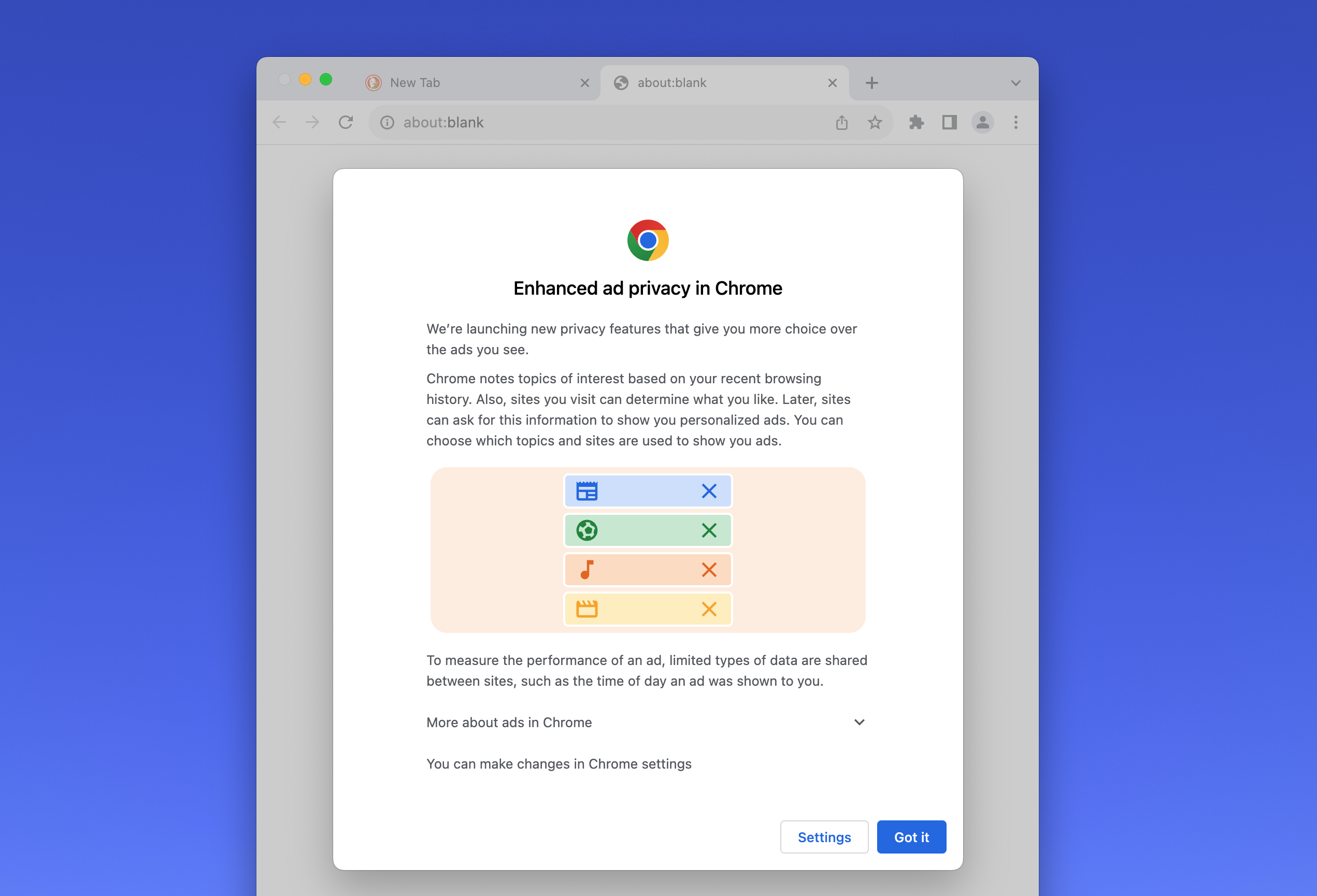

What Is Ad Privacy (Privacy Sandbox)?
Chrome introduced Privacy Sandbox features like:
- Ad Topics
- Site-suggested ads
- Ad measurement
While marketed as privacy-focused, it still analyzes browsing patterns.
How to Turn It Off
- Go to Settings
- Click Privacy and security
- Open Ad privacy
- Disable:
- Ad Topics
- Site-suggested ads
- Ad measurement
Why You Should Disable It
✔ Limits behavior-based ad tracking
✔ Reduces profiling
✔ Improves digital privacy
If you want minimal data collection — turn this off.
6️⃣ Set “Enhanced Protection” in Safe Browsing


What It Does
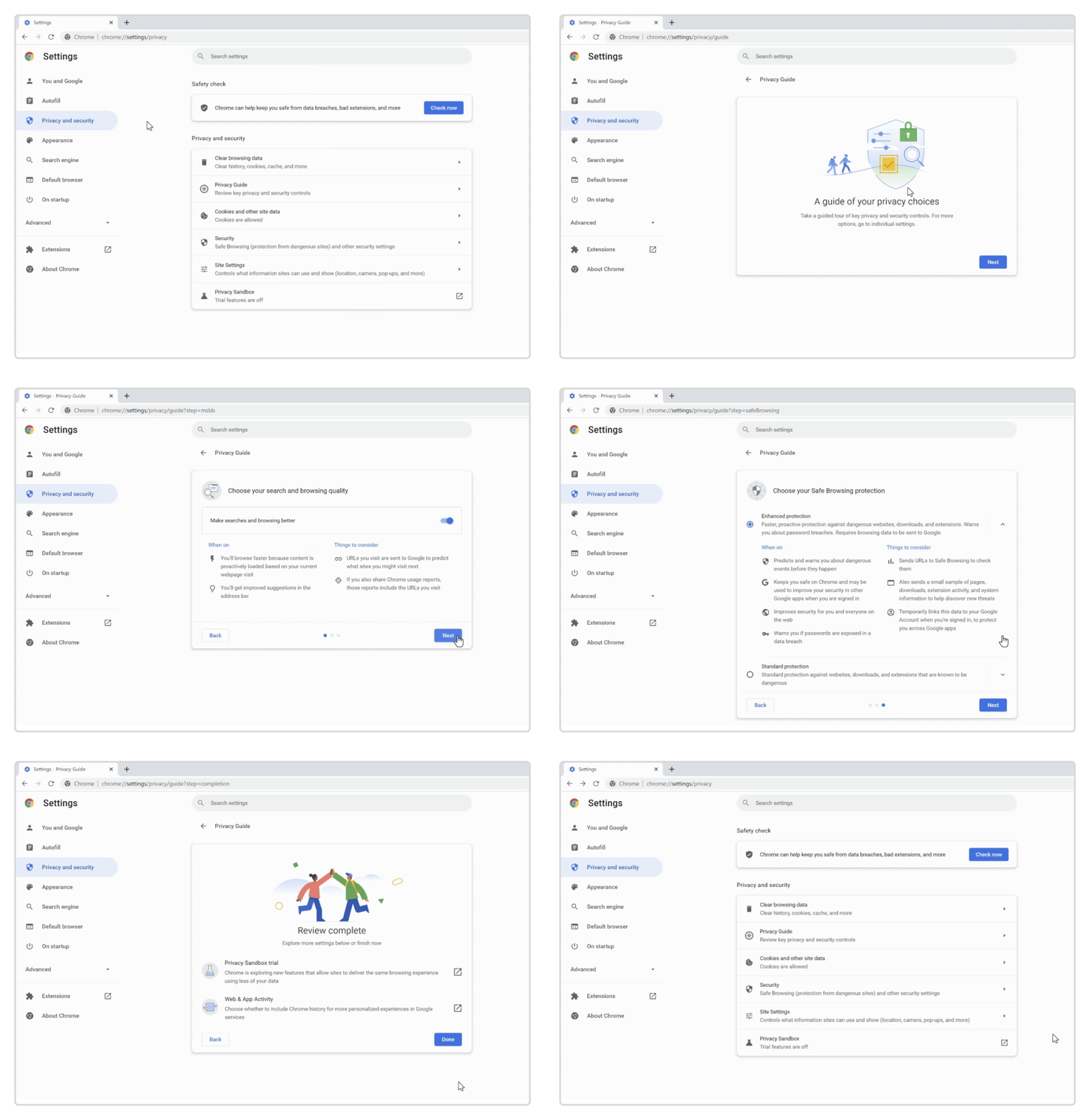
Enhanced Protection:
- Blocks dangerous downloads
- Warns about phishing sites
- Offers real-time threat detection
How to Enable
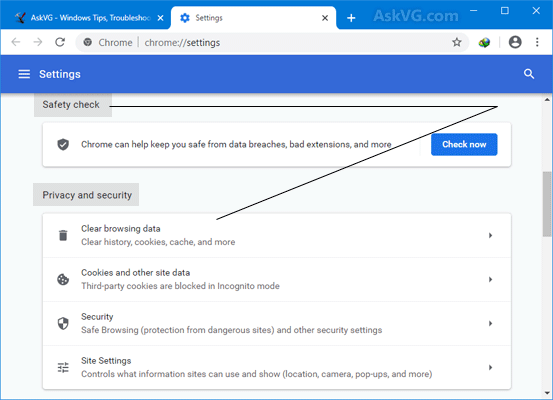
- Settings
- Privacy and security
- Security
- Choose Enhanced Protection
Why It’s Worth It
✔ Better malware protection
✔ Faster threat detection
✔ Stronger overall security
Security is speed too — because malware slows systems.
7️⃣ Disable “Search and URL Prediction”

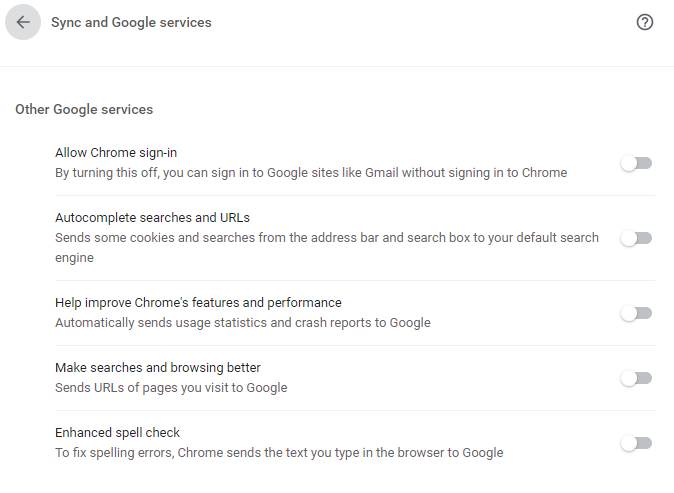
What This Setting Does
Chrome sends typed text to Google to improve suggestions.
That means:
- Partial searches get transmitted
- Browsing patterns get analyzed
How to Turn It Off
- Settings
- Privacy and security
- Turn off: “Improve search suggestions”
Privacy Advantage
✔ Less data sharing
✔ Reduced background data transmission
Small tweak — big privacy impact.
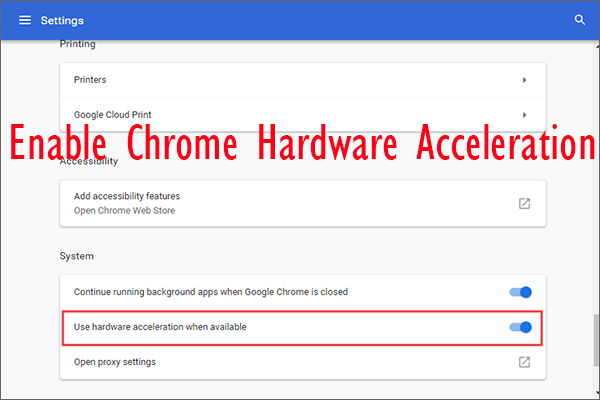
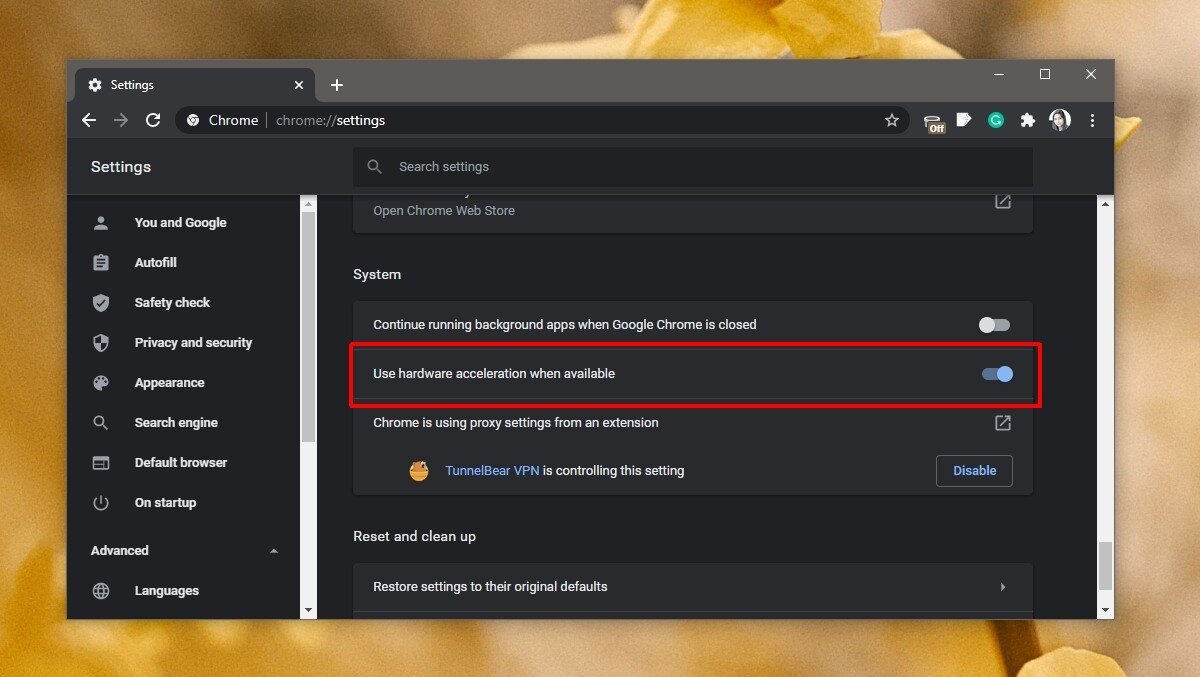
8️⃣ Turn Off “Hardware Acceleration” (If Chrome Is Laggy)


When Should You Disable It?
Hardware acceleration uses GPU to render graphics.
But sometimes it causes:
- Lag
- Screen flickering
- High GPU usage
- Crashes
How to Disable
- Settings
- System
- Turn OFF: “Use hardware acceleration when available”
- Restart Chrome
When It Helps
✔ Older graphics cards
✔ Budget laptops
✔ Systems with driver issues
Test both ways — see what works best.
9️⃣ Review and Remove Unused Extensions
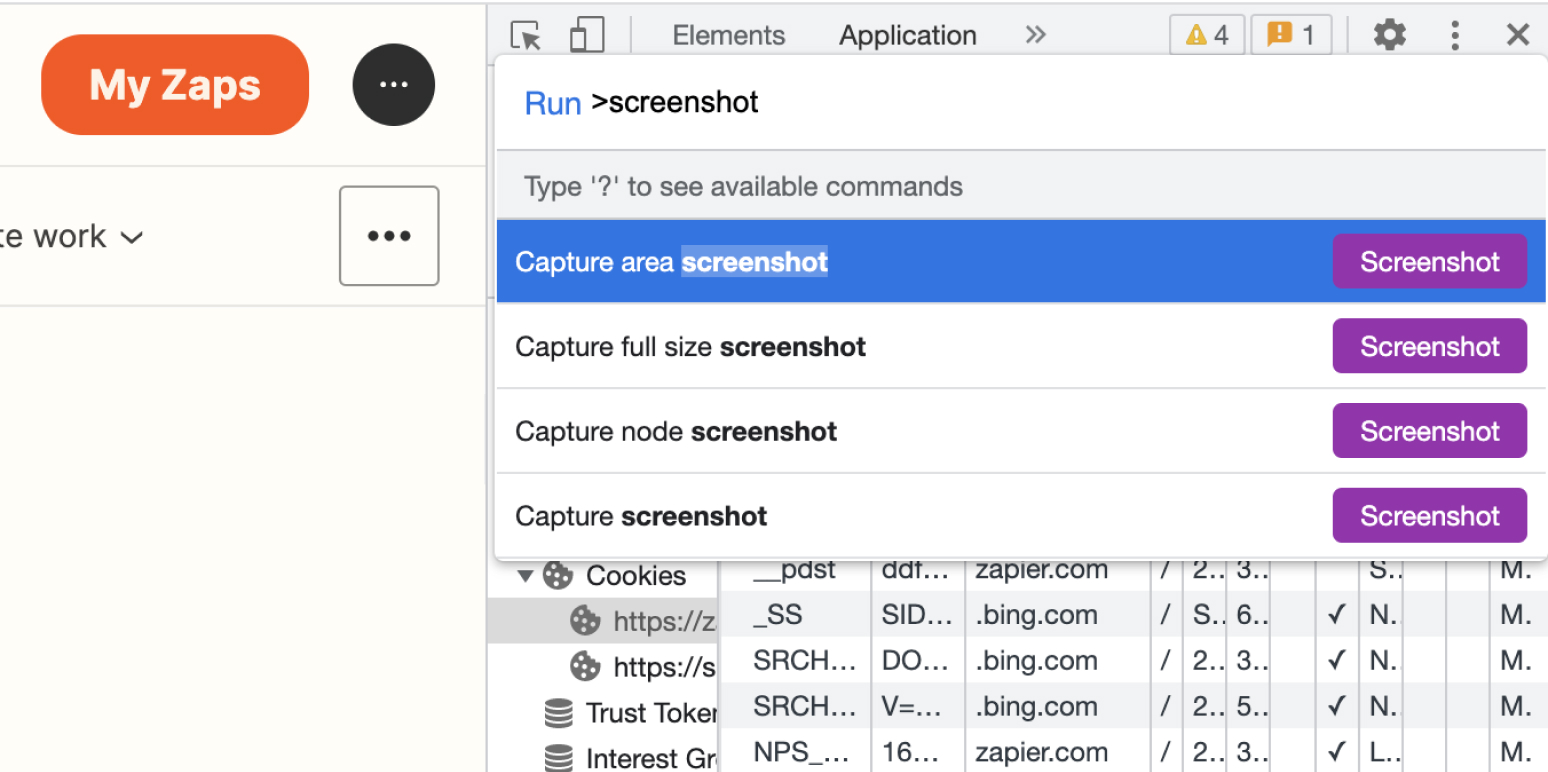


Why Extensions Slow Chrome
Each extension:
- Uses memory
- Runs background scripts
- May track browsing
How to Clean Up
- Type in address bar:
chrome://extensions - Remove unused extensions
- Disable unnecessary ones
Performance Boost
✔ Faster startup
✔ Less RAM usage
✔ Reduced tracking
Less is more when it comes to extensions.
🔟 Reset Site Permissions You Don’t Trust


Why This Is Important
Many sites have access to:
- Camera
- Microphone
- Location
- Notifications
And you may not even remember allowing it.
How to Review
- Settings
- Privacy and security
- Site Settings
- Review:
- Camera
- Microphone
- Notifications
- Location
Remove access for suspicious or unnecessary sites.
Privacy Advantage
✔ Prevents spying
✔ Reduces intrusive notifications
✔ Enhances control
Bonus Tips to Make Google Chrome Even Faster in 2026
Here are additional power tweaks:
- Keep Chrome updated
- Clear browsing data monthly
- Use fewer startup tabs
- Enable tab groups
- Use a lightweight theme
- Restart Chrome weekly
Speed vs Privacy: The Perfect Chrome Balance
Here’s what you should prioritize:
| Goal | Recommended Settings |
|---|---|
| Maximum Speed | Memory Saver ON, Extensions Reduced, Background Apps OFF |
| Maximum Privacy | Block 3rd Party Cookies, Disable Ad Privacy, Disable Preload |
| Maximum Security | Enhanced Protection ON, Review Site Permissions |
You don’t have to choose one — you can optimize for all three.
Why Most Users Never Change These Settings
Because:
- They’re buried inside advanced menus
- Google doesn’t promote privacy-heavy options
- Default settings prioritize convenience
But now you know better.
Final Thoughts: Optimize Chrome Today
Google Chrome is powerful — but only if configured properly.
If you change just these 10 settings today, you’ll notice:
- Faster browsing
- Less RAM consumption
- Reduced tracking
- Improved privacy
- Better system performance
Don’t wait.
Open Chrome right now and start optimizing.